OpenGDP Devnet Is Now Live
TL;DR
OpenGDP Devnet is now open to our whitelisted users. You can deploy contracts and try the fullstack interactive demo with market infrastructure flows that define the OpenGDP network. We are shipping a market infrastructure template, updated docs, a faucet, and a lightweight SDK. The OpenGDP Network Stack (ONS) interactive demo will soon be available in devnet, allowing the creation of sovereign, bespoke blockchain networks powered by shared security. Join office hours for live walkthroughs.
Why Devnet
OpenGDP is the Global Base Layer for Programmable GDP. Devnet gives builders a safe sandbox to validate end-to-end market workflows: issuance, price discovery, and settlement. It keeps the brand story clean while putting real tools in your hands.
What is live today
- Faucet: Claim test tokens for gas and sample product flows.
- Docs: Task-oriented guides for deploy, mint, trade, and settle.
- Templates: Workflows for tokenized securities to demonstrate full-stack market infrastructure.
- Community: Live office hours, support channels, and issue templates.
Note: Devnet is for testing only. No real assets. Expect redeployments and rapid iteration.
What you can build today
- Any application smart contract on OpenGDP L1 Devnet
- Full-stack tokenized market infrastructure for issuance and quoting, matching, and settlement.
OpenGDP Interactive Demo Quickstart
Getting Started
Access: Navigate to https://demo.opengdp.network/trade/TSLA-USDC
Understanding the Interface
The OpenGDP Demo provides a comprehensive full-stack tokenized market interface for the TSLA-USDC spot market.
Top Bar Information:
- Market pair (NVDA-USDC) or (TSLA-USDC)
- Current price
- 24-hour price change
- 24-hour trading volume
- Market capitalization
Main Trading Sections:
- Left: Candlestick price chart
- Center: Live orderbook
- Right: Trading panel
Activity Tracking (scroll down to view):
- Balances: Your current holdings
- Open Orders: Active limit orders
- Order History: Completed trades
- Bridge History: Deposit and withdrawal records
Initial Setup
1. Connect Your Wallet
Click Login in the top-right corner and select your preferred wallet (this guide uses MetaMask as an example). If your wallet isn't listed, select "Other wallet."
Prerequisites: You'll need Sepolia Testnet ETH in your wallet. Get free testnet ETH from:
- Alchemy Sepolia Faucet: https://sepoliafaucet.com
- Infura Sepolia Faucet: https://www.infura.io/faucet/sepolia
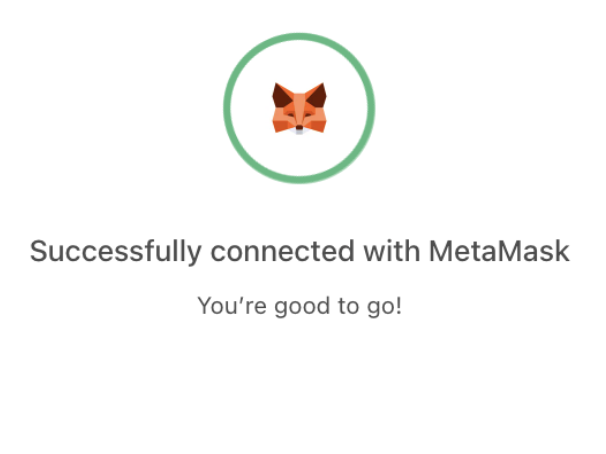
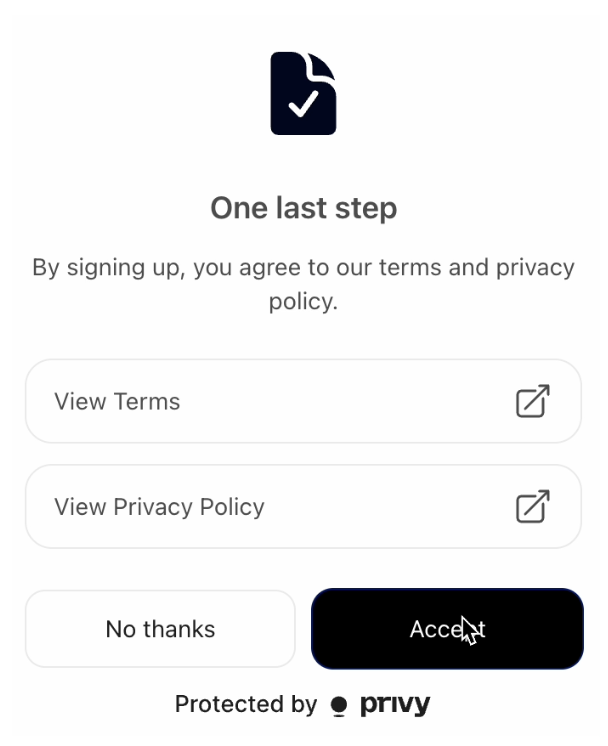
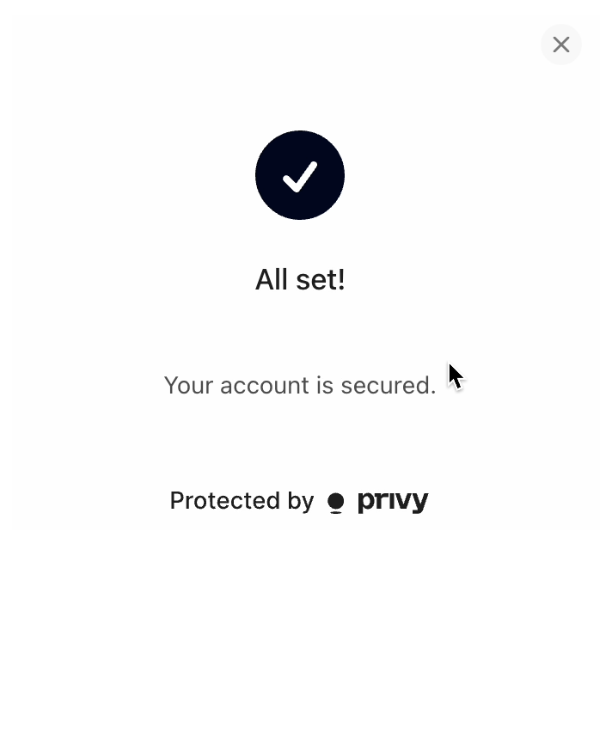
Follow the prompts to connect your wallet and sign the authentication request. Agree to the T&C, and you are all set.
| Connecting | Connection Successful |
|---|---|
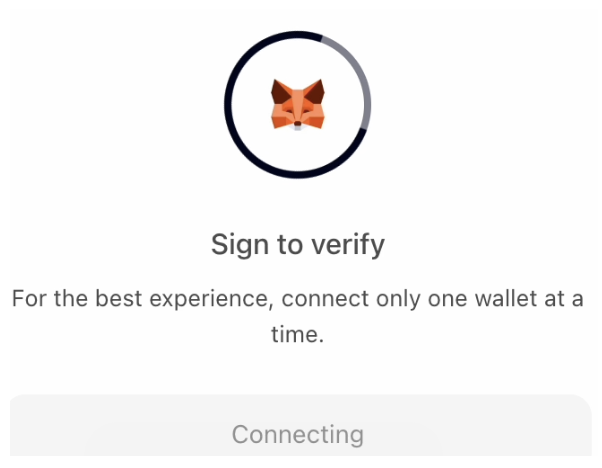 |  |
| Agree to T&C | All set! |
 |  |
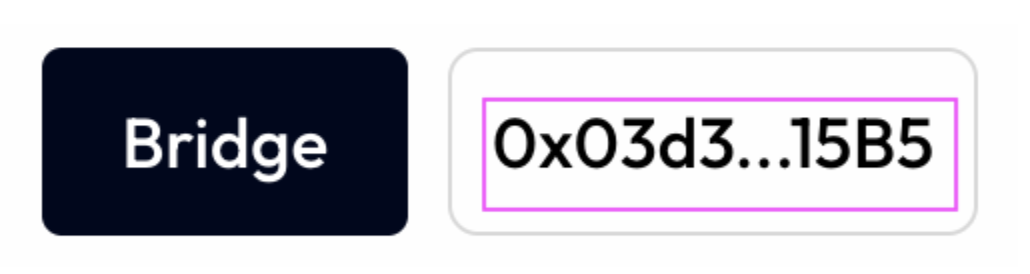
Once connected, you'll see two buttons in the top-right corner: your wallet address and "Bridge."
2. Get Testnet Tokens
Click your wallet address button (highlighted above) to open your account card, then click Faucet to receive 1,000 testnet OGDPUSDC. Confirm the transaction in MetaMask and wait for on-chain confirmation.
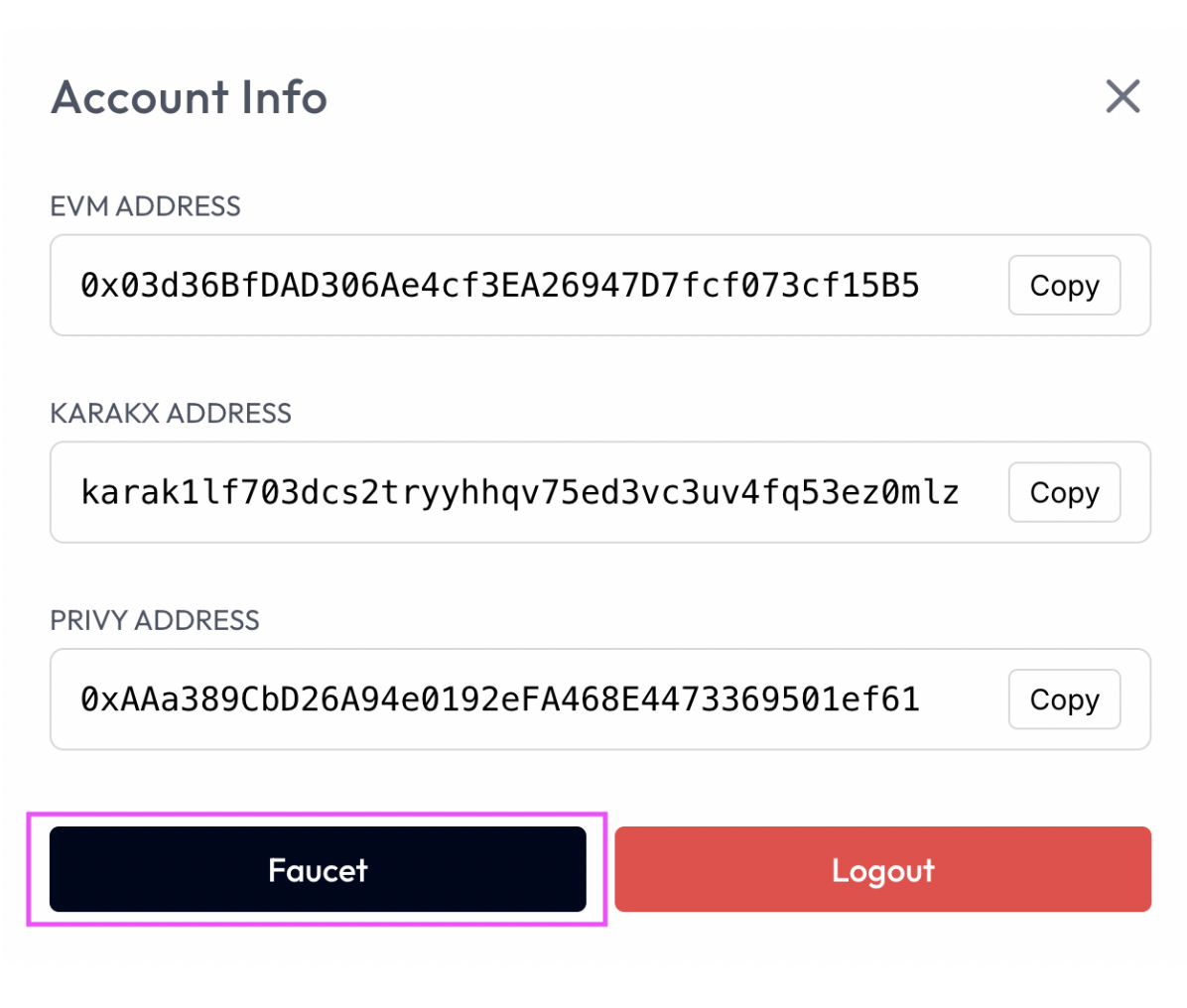
You’ll see a confirmation message on the bottom right corner once the minting is successful.

You can verify the transaction on Sepolia Etherscan: https://sepolia.etherscan.io/
Note: Request from the faucet multiple times if you need more tokens. These are testnet tokens with no real-world value.
3. Bridge Assets
Click the Bridge button on the top left corner and enter the amount you want to deposit (or click MAX for your full balance).
You'll sign two transactions:
| Step | Result |
|---|---|
| Approve OGDPUSDC spending |  |
| Execute the bridge deposit |  |
Monitor your deposit status in the Bridge History tab at the bottom of the page. Once the status changes from "PENDING" to "COMPLETE," your funds are ready to trade.
4. Create Your Account
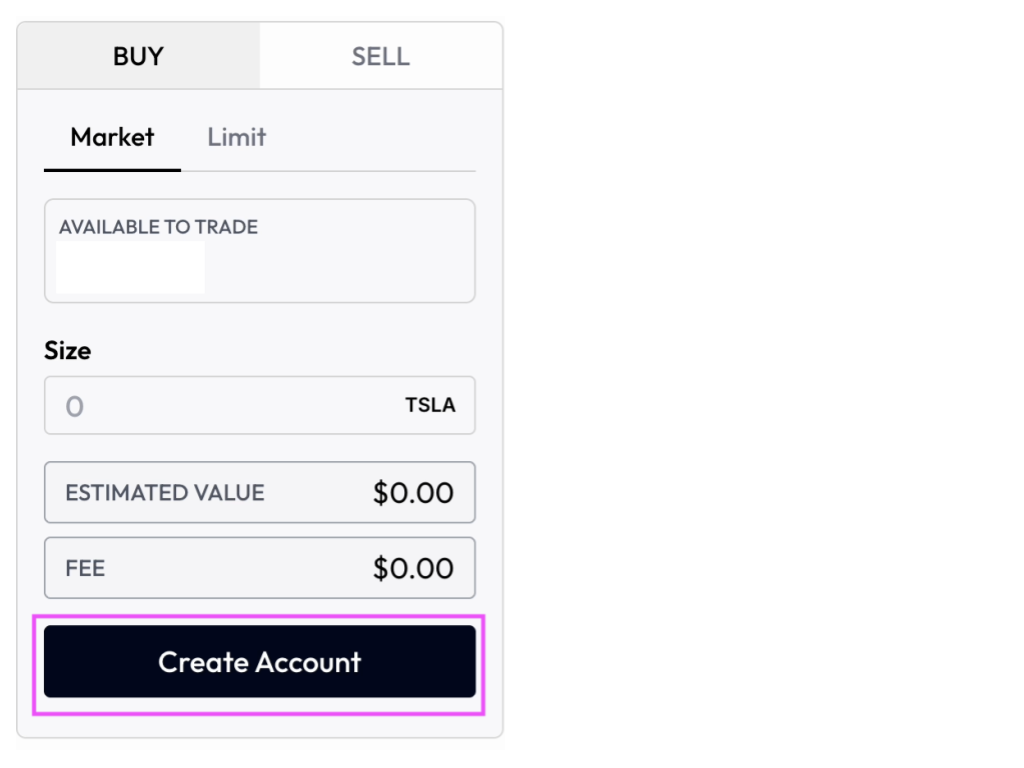
After successfully bridging assets, click Create Account on the trading panel (right side of the main section) and follow the MetaMask prompts to complete the setup.
Full-stack Market Infrastructure
The demo currently supports two tokenized markets: TSLA and NVDA. This guide uses TSLA as an example.
Buying TSLA
Market Orders
- Navigate to the trading terminal and select Market
- Enter the size (amount of TSLA you want to purchase)
- Click BUY
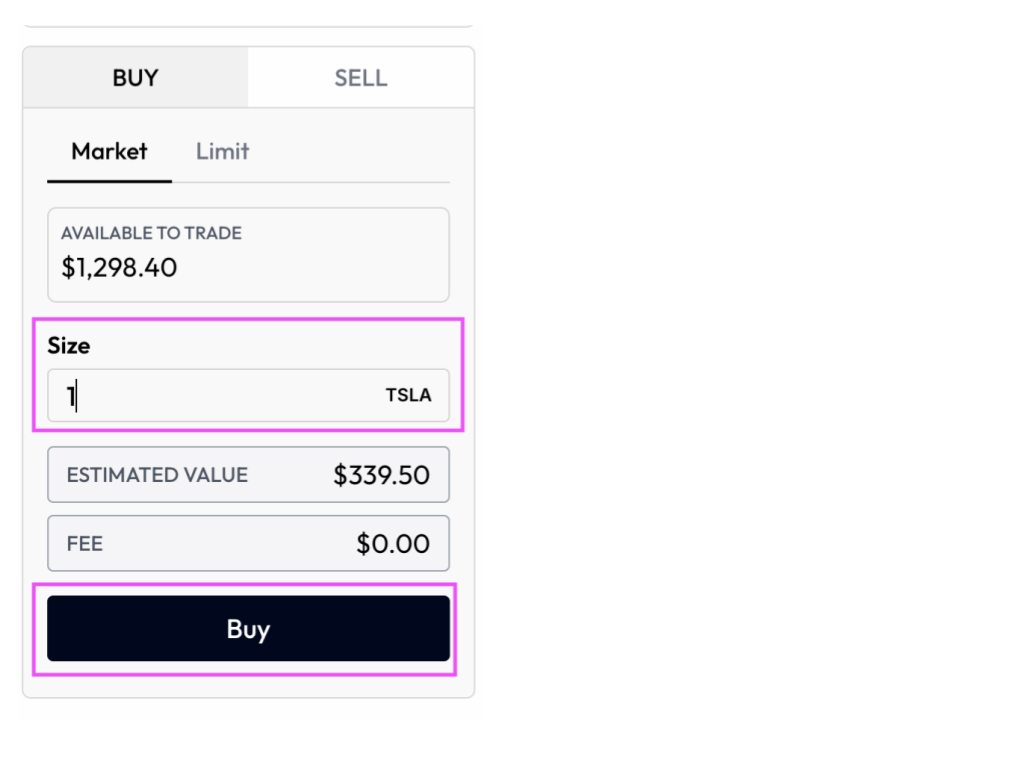
Note: The estimated value shown is the average of the best bid and ask prices, not your actual execution price. Trading fees are currently set to zero.
Your order will execute immediately. Track your updated balance in the Balances tab and view order details in the Order History tab.
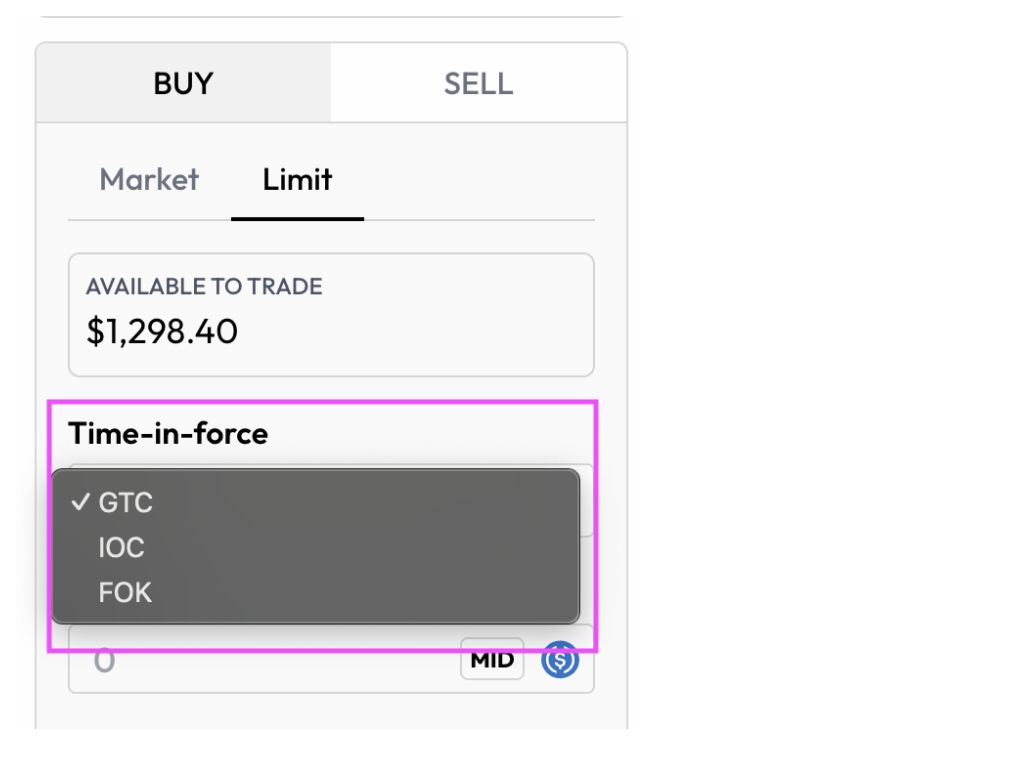
Limit OrdersThe platform supports three Time-in-Force (TIF) options:
| Order type | Description | Example |
|---|---|---|
| GTC (Good 'Til Canceled) | Remains active until filled or manually canceled | Buy 100 TSLA at $450—order stays open until the price is reached or you cancel it |
| IOC (Immediate or Cancel) | Fills available quantity immediately, cancels the rest | Want 100 TSLA at $450, but only 60 available—you receive 60, the remaining 40 are canceled |
| FOK (Fill or Kill) | Executes completely or cancels entirely | Want 100 TSLA at $450, but only 60 available—entire order is canceled, you receive 0 shares |
To place a limit order:
- Select your preferred order type
- Enter your desired price
- Enter the size
- Click BUY
Selling TSLA
Selling follows the same process as buying. You can execute market or limit sell orders to take profits or close positions.
Requirements:- You must hold TSLA in your spot balance to sell
- Margin trading is not currently supported—all trading is spot-only
- View active limit orders in the Open Orders tab
- Cancel unwanted orders directly from this tab
- Review all completed trades in the Order History tab
Note: Advanced features such as SL(stop-loss), TP(take-profit), TWAP, and scaled orders are not yet available.
Withdrawal
To withdraw testnet USDC from your trading account back to the Sepolia testnet, start by clicking the Bridge button in the top right corner.
Once there, select the Withdraw tab located next to Deposit. If you've already deposited funds, you would have seen this option during that process. Enter the amount of USDC you want to withdraw, then click Withdraw.
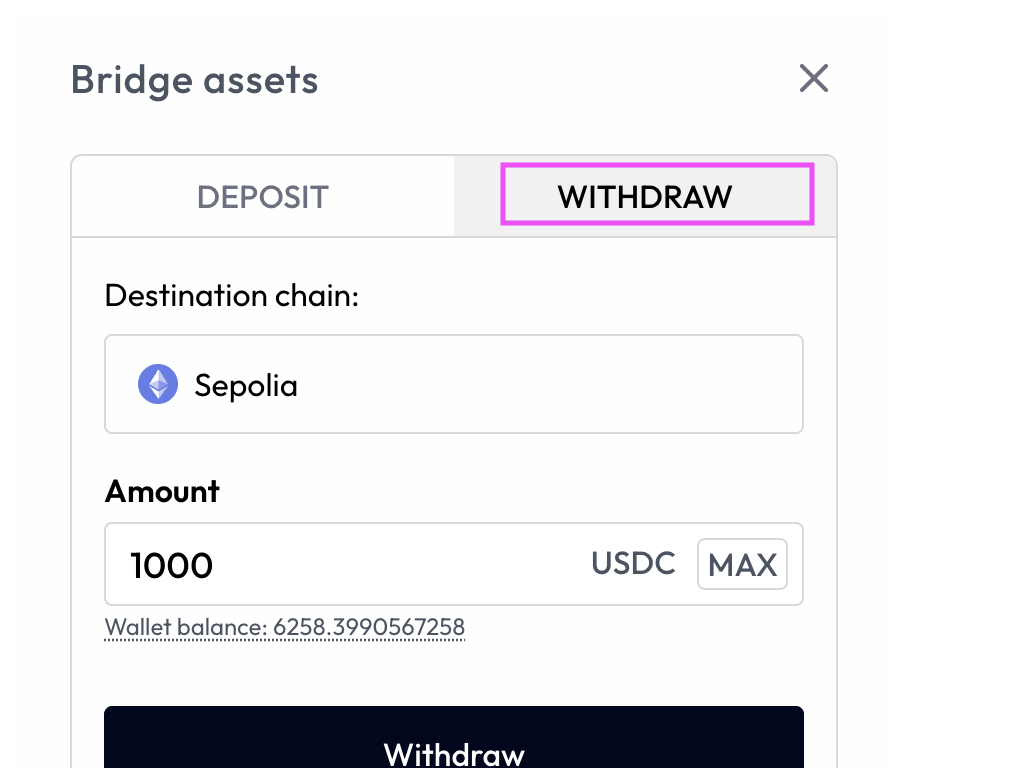
After submitting your withdrawal, you'll receive notifications in the bottom right corner as the transaction processes.

You can track your withdrawal status anytime in the Bridge History tab. To verify the withdrawal is complete, check the transaction on Sepolia Etherscan at https://sepolia.etherscan.io/.

Compatibility
- Full EVM support, tooling, and languages
- Foundry, Hardhat, Viem, ethers.js
- MetaMask, Coinbase Wallet, Rainbow, Zerion, Rabby Wallet, Uniswap, OKX Wallet, Bybit Wallet, and others that support WalletConnect.
Testing notes
- Throughput and finality targets are not final.
- Endpoints and contracts may change during Devnet.
- Chain resets can occur as we iterate.
What’s next
- ONS demo
- APIs
- SDKs
- More templates for more asset classes
- Public testnet details and migration notes
Office hours and support
- Live walkthroughs, Q&A, and migration guidance will be posted in community channels.
- Bug reports and feature requests are tracked on Discord.